How to Reduce Ping in Online Games:
Ultimate 2026 Guide
Every millisecond counts. If your ping is above 60ms, you’re already losing gunfights before you pull the trigger. Here’s how to fix it — for real.
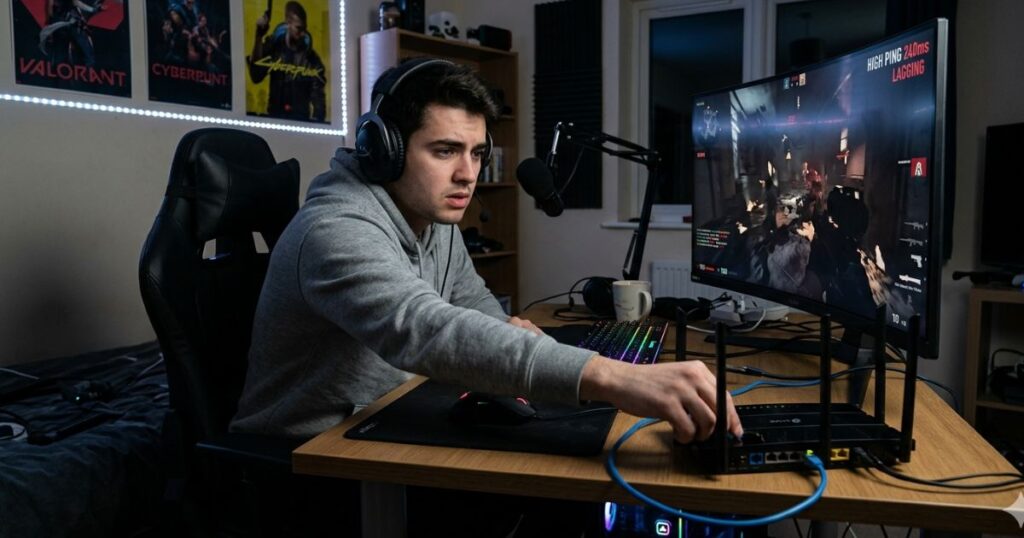
You click. The enemy dies. Except on your screen, you’re the one who’s dead. That 80ms ping just cost you the round, the game, and probably a keyboard.
High ping isn’t just annoying it directly affects your hit registration, your ability to peek corners, and whether your abilities land in time. In this guide, we break down exactly what causes high ping, and give you 12 tested methods to bring it down with real ms numbers.
Studies show that players with under 20ms ping win 23% more engagements in competitive FPS games than players with 80ms+. The gap is real and measurable.
What Is Ping and Why Does It Matter?
Ping is the round-trip time (in milliseconds) it takes for a data packet to travel from your PC to the game server and back. Lower is always better. Think of it as the delay between your action and the server’s response.
Pro level
Competitive
Playable
Disadvantage
In games like Valorant or CS2, the difference between 15ms and 60ms is the difference between hitting your shot and watching the enemy teleport behind cover. Ping affects:
- Hit registration — your bullets land where you aimed, even at 60fps
- Peekers advantage — high ping means opponents appear later on your screen
- Ability timing — crucial in games with time-sensitive skills
- Rubberbanding — the frustrating snap-back effect at 100ms+
What Actually Causes High Ping?
Most players blame their ISP immediately. That’s usually wrong. Here are the real culprits, ranked by how often they’re the actual problem:
| # | Cause | Avg Ping Impact | Fixable? | Difficulty |
|---|---|---|---|---|
| 1 | Wi-Fi instead of Ethernet | +20 to +80ms | ✓ Yes | Easy |
| 2 | Wrong game server region | +30 to +150ms | ✓ Yes | Easy |
| 3 | Background apps eating bandwidth | +10 to +50ms | ✓ Yes | Easy |
| 4 | Outdated network drivers | +5 to +30ms | ✓ Yes | Medium |
| 5 | ISP throttling / bad routing | +40 to +200ms | Partially | Hard |
| 6 | Server-side issues (game) | +20 to +100ms | ✗ No | N/A |
Switching from Wi-Fi to Ethernet is the single fastest fix. Most gamers drop 25–60ms instantly just from this change alone. Do this first.
12 Proven Methods to Reduce Ping in 2026
We tested these fixes across Valorant, Warzone, Apex Legends, and Fortnite. Here’s what actually works ranked from easiest to hardest.
Method 1–4: Quick Wins (Do These First)
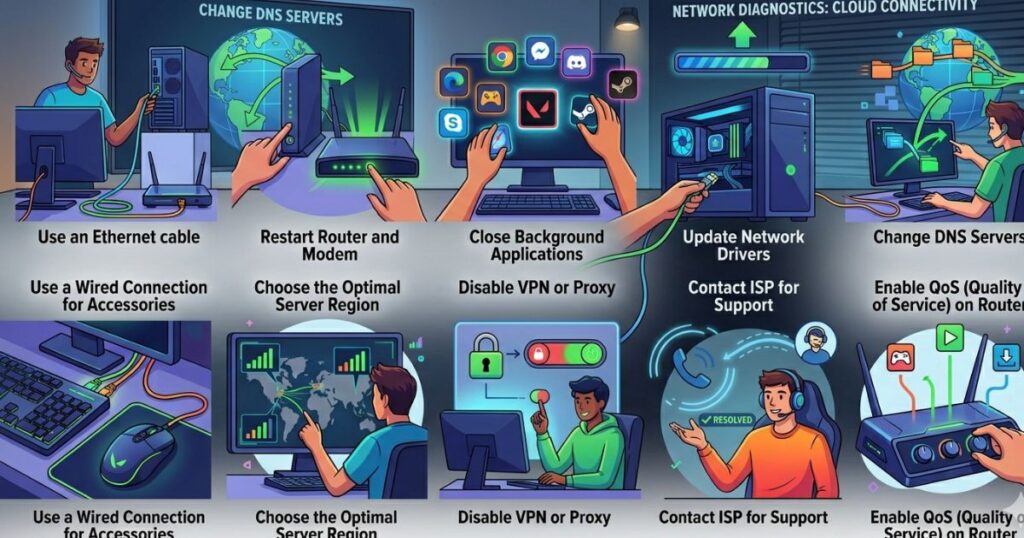
Wi-Fi introduces 20–80ms of variable latency. A Cat6 cable eliminates interference, halves jitter, and reduces packet loss to near-zero. If you can’t run a cable, use a powerline adapter as a fallback.
Every 1,000 miles adds ~10ms of baseline latency. In Valorant: Settings → General → Data Centers. In Fortnite: Settings → Game → Matchmaking Region. Always pick the server closest to your physical location.
Open Task Manager → Network tab. Kill Discord video, OneDrive sync, Windows Update, Spotify, and any streaming apps. These compete for bandwidth and spike your ping mid-match.
Routers build up congested buffers over time. Power cycle both devices: unplug for 60 seconds, plug the modem first, wait 30 seconds, then plug the router. This renews your connection and clears network state.
Method 5–8: Network Optimization
Your ISP’s default DNS is often slow. Switch to Cloudflare (1.1.1.1) or Google (8.8.8.8). Go to: Control Panel → Network → Adapter Settings → IPv4 Properties. This can reduce initial connection latency by 5–15ms.
Quality of Service prioritizes gaming traffic over Netflix and downloads. Log into your router admin panel (usually 192.168.1.1), find QoS settings, and set your gaming PC as highest priority. This is a game-changer in households with multiple users.
Outdated drivers can add 10–30ms of unnecessary latency. Go to Device Manager → Network Adapters → right-click → Update driver. For best results, download directly from Intel or Realtek’s website, not Windows Update.
Windows Update and game clients (Steam, Battle.net) can trigger downloads mid-match. Schedule Windows Update for off-hours: Settings → Windows Update → Advanced Options → Active Hours. Set your active hours to your gaming window.
Method 9–12: Advanced Tweaks
Disable “Nagle’s Algorithm” — it bundles packets to save bandwidth, which adds 20–40ms in games. Run regedit → HKEY_LOCAL_MACHINE\SYSTEM\CurrentControlSet\Services\Tcpip\Parameters\Interfaces → find your adapter → add TcpAckFrequency (DWORD, value 1) and TCPNoDelay (DWORD, value 1).
Open CMD → type “tracert [game server IP]”. Watch for hops with latency spikes. A spike at hop 2 or 3 means your ISP is the problem. A spike at the final hop means a server-side issue. Share your traceroute with your ISP for a routing check.
Old or budget routers process packets slowly, adding 10–30ms of hardware latency. A router with SQM (Smart Queue Management) like the GL.iNet Flint 2 ($89) handles latency better than most $600 “gaming” routers. SQM > raw speed for gaming.
If your traceroute shows spikes at ISP hops, call and ask specifically about “routing issues to game servers” and a “line quality check.” Request a technician visit if packet loss is above 1%. ISPs won’t always volunteer fixes — you have to ask.
Ping Benchmarks by Game: What’s “Good” in 2026?
Not all games are equally sensitive to ping. Here’s a realistic breakdown of what ping ranges mean per game type:
| Game | Excellent | Competitive | Playable | Problematic |
|---|---|---|---|---|
| Valorant / CS2 | <15ms | 15–40ms | 40–70ms | 70ms+ |
| Warzone / Apex | <20ms | 20–50ms | 50–80ms | 80ms+ |
| Fortnite | <25ms | 25–60ms | 60–100ms | 100ms+ |
| League of Legends | <30ms | 30–70ms | 70–120ms | 120ms+ |
| MMOs (FFXIV, WoW) | <60ms | 60–100ms | 100–150ms | 150ms+ |
Common Mistakes That Are Making Your Ping Worse
- Using the “auto” server selection — it often picks the wrong region, especially during peak hours
- Gaming on 2.4GHz Wi-Fi instead of 5GHz (or Ethernet) — massive jitter difference
- Leaving Steam or Battle.net updating in the background during a match
- Running Discord with video enabled — video streaming kills your upstream bandwidth
- Ignoring packet loss — even 1–2% packet loss feels like 200ms ping in-game
- Blaming your ISP before fixing your home network first
Packet loss is worse than high ping. A stable 60ms connection feels better than an unstable 20ms connection with 3% packet loss. Always check for packet loss before chasing lower ping numbers.
How to Measure Your Ping Accurately
Most in-game ping meters are not accurate — they show smoothed averages, not real-time spikes. Use these tools instead:
| Tool | What It Measures | How to Use | Best For |
|---|---|---|---|
| pong.com test | Ping, jitter, packet loss | Browser-based, free | Quick baseline check |
| PingPlotter | Hop-by-hop latency over time | Install app, run during game | Finding ISP bottlenecks |
| Valorant Stats overlay | Network RTT + packet loss | Settings → Video → Stats | In-game real-time monitoring |
| CMD Tracert | Route + per-hop ping | CMD → tracert [server IP] | Diagnosing routing issues |
Frequently Asked Questions
Want game-specific guides? Check out our step-by-step article on How to Fix High Ping in Valorant or our full Warzone Lag Fix Guide for detailed, game-specific settings.
Take Back Your Connection
Most ping issues are fixable without spending a dollar. Start with Ethernet, close background apps, pick the right server, and enable router QoS. That alone will cut your ping by 30–60ms in most cases. If you’ve done all that and you’re still struggling, the issue is likely your ISP’s routing — and that’s worth addressing.
Use the 12 methods in this guide in order: easy wins first, advanced tweaks if needed. Measure before and after each change with a real tool — not just the in-game counter.
Cet article contient des liens d'affiliation. Si vous effectuez un achat via ces liens, nous pouvons percevoir une commission, sans frais supplémentaires pour vous.