
How to Fix High Ping in Valorant:
10 Proven Fixes (2026)
You had the shot. The headshot sound played. But on the server, you were already dead. That’s high ping — and here’s exactly how to fix it.
In Valorant, your ping directly decides whether your Vandal shot registers — or ghosts right through an enemy. The game runs on a 128-tick server, which means it updates your position and actions 128 times per second. At 80ms ping, you’re already playing half a second behind everyone else in the lobby.
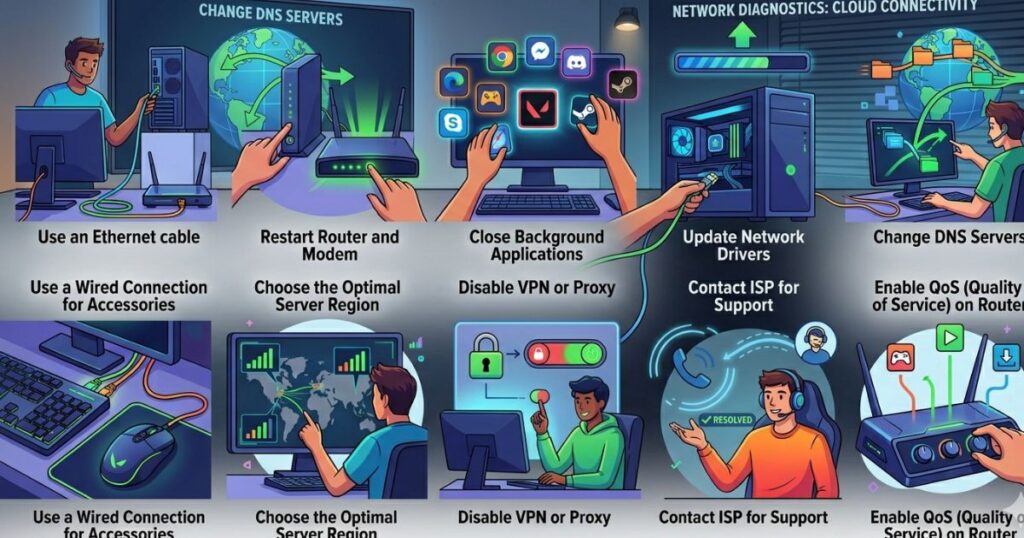
The good news: most Valorant ping issues are not caused by your internet plan. They’re caused by fixable settings, wrong server selection, and background processes stealing your bandwidth. We’ll fix all of that.
Step 0: How to See Your Real Ping in Valorant
Don’t rely on the small icon in the top corner. Enable the full stats overlay:
Go to Settings → Video → Stats. Enable:
This gives you real-time ping AND packet loss visible during every match. Watch for spikes, not just averages.
10 Fixes to Lower Your Valorant Ping
Wi-Fi introduces random interference, especially in apartments with 20+ competing networks. This adds 20–80ms of variable latency and causes the ping spikes you see mid-match.
Use a Cat5e or Cat6 cable. If running cable is impossible, use a powerline adapter ($30–50) — it sends internet through your electrical wiring and is far more stable than Wi-Fi.
Valorant doesn’t always pick the optimal data center. Force it manually:
| US Region | Best Server | Expected Ping |
|---|---|---|
| East Coast (NYC, Boston, DC) | North America → NA1 | 8–20ms |
| West Coast (LA, SF, Seattle) | North America → NA2 | 10–25ms |
| Midwest (Chicago, Dallas) | NA1 or NA2 | 20–40ms |
| South (Miami, Houston) | NA1 (East) | 25–45ms |
Before launching Valorant, open Task Manager (Ctrl+Shift+Esc) → Network tab. Kill anything using bandwidth:
- Discord (especially video/screen share)
- OneDrive / Google Drive sync
- Windows Update
- Steam downloads
- Browser with YouTube/Twitch
Your ISP’s DNS is often slow at resolving server addresses. Switch to Cloudflare’s 1.1.1.1 — the world’s fastest public DNS:
Outdated drivers can cause inconsistent packet handling — which looks like random ping spikes in-game.
For best results, go directly to Intel, Realtek, or Killer Network’s website and download the latest driver manually. Don’t rely on Windows automatic detection.
Tell Windows to prioritize Valorant’s network packets over everything else:
You can also set this automatically with a launch shortcut. Do this every session — it resets on reboot.
If others in your house are streaming Netflix or on Zoom during your ranked session, QoS is the fix. It tells your router to send your gaming traffic first, no matter what else is happening on the network.
Add your gaming PC by MAC address and set priority to “Highest.” Check your router’s manual for exact steps — they vary by brand (Netgear, ASUS, TP-Link).
Corrupted DNS cache and TCP settings can create routing inefficiencies. Reset everything clean:
Restart your PC after running these commands. This clears stale network state that builds up over time.
Nagle’s Algorithm batches small packets together to save bandwidth — which adds 20–40ms latency. Disable it for gaming:
Find your network adapter’s key → Create two DWORD (32-bit) values:
If you’ve done everything above and ping spikes still happen between 7–11pm, it’s likely ISP congestion or Riot server load. Check status.riotgames.com for official server status.
Playing between 6am–5pm ET typically gives 15–30% lower ping than evening peak hours, due to both ISP and game server load differences.
Best In-Game Valorant Network Settings (2026)
These settings won’t fix your ping, but they’ll make sure Valorant is using your connection optimally:
Valorant Ping FAQ
Stop Blaming the Game — Fix Your Connection
Most Valorant ping issues are fixable in under 30 minutes. Start with the big four: Ethernet cable, correct server selection, close background apps, and router QoS. That combination alone will drop most US players from 60–80ms down to 15–35ms.
If you’ve done all 10 fixes and still see 70ms+, the issue is your ISP’s routing — run a tracert and contact them with the output.
Full Ping Reduction Guide → Warzone Lag Guide →