Best Warzone Settings to Reduce Lag in 2026:
Full Setup Guide
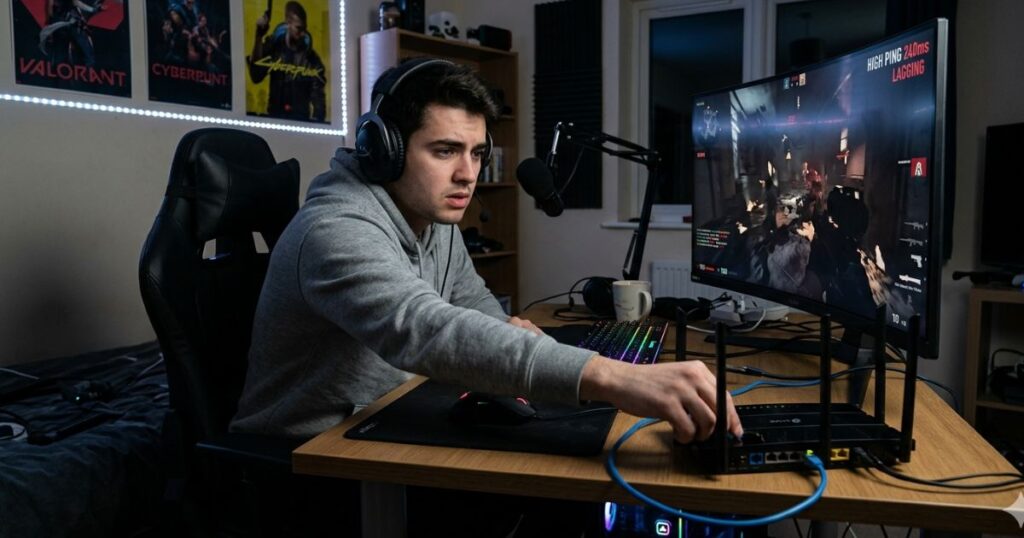
You had the circle. You had the loadout. Then lag killed you. Here’s the complete Warzone setup to eliminate lag, lower your ping, and stop losing to connection issues.
Warzone is one of the most ping-sensitive battle royales. Unlike Fortnite, there’s no building to compensate — every gunfight comes down to raw reaction time and whether your hit registers on the server before theirs does.
At 40ms ping or less, you’re competitive. At 80ms+, you’re consistently losing fights you should win. This guide walks through every setting category — network, graphics, and Windows — that affects your Warzone performance.
Part 1: Network Settings (Biggest Impact)
These are the changes that actually move the needle on your ping. Do all of these before touching anything else.
Warzone doesn’t always connect you to the closest server — it picks based on matchmaking pool size, not your location. Check and fix this:
On the lobby screen, you’ll now see ping to each region. Select the server with the lowest ms. For US players:
| US Location | Best Server | Expected Ping |
|---|---|---|
| East Coast | US East | 8–25ms |
| West Coast | US West | 12–30ms |
| Midwest / South | US Central or East | 20–45ms |
| Wrong region (e.g. EU) | Any EU server | 100–160ms |
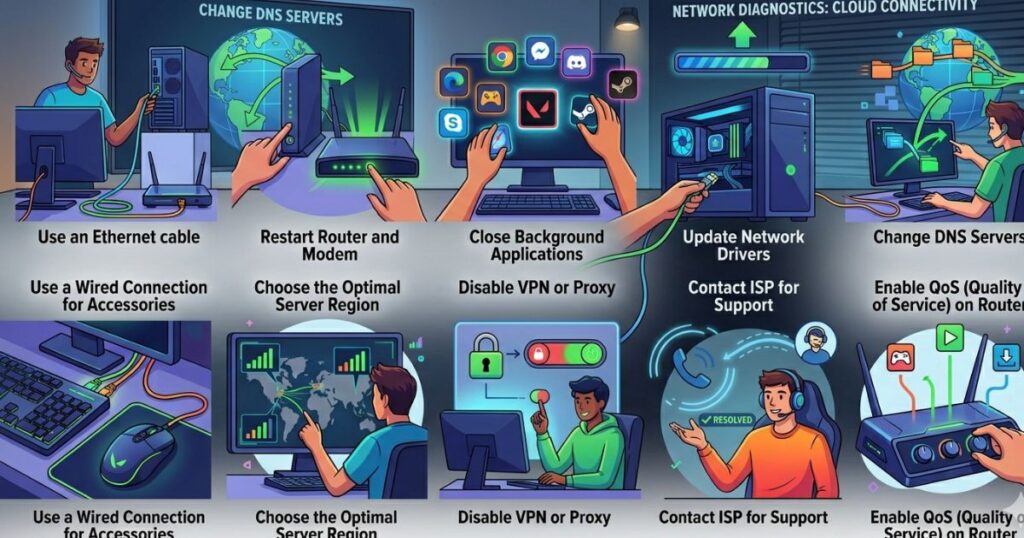
Warzone downloads are large and multiplayer traffic is constant. Wi-Fi interference during a 150-player lobby is a real problem. A $12 Cat6 cable eliminates this entirely. If you can’t run a cable, use a powerline adapter or MoCA adapter — both outperform Wi-Fi significantly.
You’ll see real-time ping, server tick rate, and packet loss overlaid on screen. Keep an eye on packet burst — this is Warzone-specific and means multiple packets arrived at once, causing micro-stutters that feel like lag even at low ping.
Part 2: Best Warzone In-Game Settings for Lag Reduction
These are the settings inside Warzone that directly affect network performance and input lag:
Part 3: Graphics Settings That Reduce Lag and Input Lag
High graphics settings don’t affect your network ping, but they affect your GPU load — which causes frame drops that feel like lag. Here’s what to change:
| Setting | Recommended Value | Why |
|---|---|---|
| Render Resolution | 100% (native) | Don’t sacrifice clarity for fake performance |
| Shadow Quality | Low or Normal | Shadows are the biggest GPU killer in Warzone |
| Anti-Aliasing | SMAA 1X | MSAA is too heavy for competitive play |
| Texture Resolution | Normal | High textures eat VRAM and cause stutters |
| Ambient Occlusion | Disabled | No gameplay impact, heavy GPU cost |
| Depth of Field | Disabled | Blur effect adds GPU load with zero benefit |
| Motion Blur (World + Weapon) | Disabled (both) | Adds input lag perception and visual confusion |
| DLSS / FSR | Quality mode (if <144fps) | Good way to reclaim FPS on mid-range GPUs |
Part 4: Windows Settings for Warzone Performance
- Set Windows Power Plan to High Performance — Control Panel → Power Options → High Performance. Prevents CPU throttling mid-match.
- Disable Xbox Game Bar — Settings → Gaming → Xbox Game Bar → Off. It runs in the background and uses CPU/network resources.
- Enable Game Mode — Settings → Gaming → Game Mode → On. Prioritizes Warzone’s CPU cores and reduces background interference.
- Disable Hardware-Accelerated GPU Scheduling (HAGS) if you’re on older GPU — On RTX 30-series and newer it helps; on GTX cards it can add latency.
- Close Battle.net launcher after launching — It continues downloading and checking for updates in the background. Kill it in Task Manager after your game starts.
- Schedule Warzone updates for overnight — Battle.net → Settings → Downloads → Schedule updates for off-hours.
How to Diagnose Your Warzone Lag Type
Not all lag is the same. Here’s how to identify what you’re dealing with:
| Symptom | Likely Cause | Fix |
|---|---|---|
| Consistent 80ms+ ping | Wrong server or bad ISP routing | Change region + call ISP |
| Ping spikes 20ms → 200ms | ISP congestion or background downloads | QoS + kill background apps |
| Low ping but feels laggy | Packet loss or high jitter | Check packet loss metric in-game |
| Game freezes for 1–2 seconds | On-Demand Texture Streaming active | Disable texture streaming |
| Rubber-banding constantly | Packet loss above 2% | Ethernet + router QoS |
| Fine solo, bad in squad matches | Party routing pulls you to distant server | All squad members use same region |
Warzone Lag FAQ
Stop Losing to Lag — Start Winning the Network
The biggest Warzone lag fixes are free and take under 30 minutes: disable On-Demand Texture Streaming, manually select the right US server, switch to Ethernet, and enable QoS on your router. That combination eliminates 80% of lag complaints.
Use the diagnosis table to identify exactly what type of lag you’re dealing with, then apply the targeted fix. Don’t change everything at once — test one fix at a time and measure the difference with Warzone’s built-in network metrics.
Full Ping Guide → Valorant Ping Fix →Cet article contient des liens d'affiliation. Si vous effectuez un achat via ces liens, nous pouvons percevoir une commission, sans frais supplémentaires pour vous.